
Free · No signup · Ready in seconds
Turn a photo, logo or drawing into a crisp vector silhouette. Export a clean SVG, PDF, EPS or DXF file for stencil cutting, spray painting, airbrushing, etching and more. It is completely free, with no watermark.
Upload a file, pick an output format, and convert.
Step-by-step tutorial
Follow these three steps to turn any graphic, photo, or logo into a physical, cut-ready stencil template.
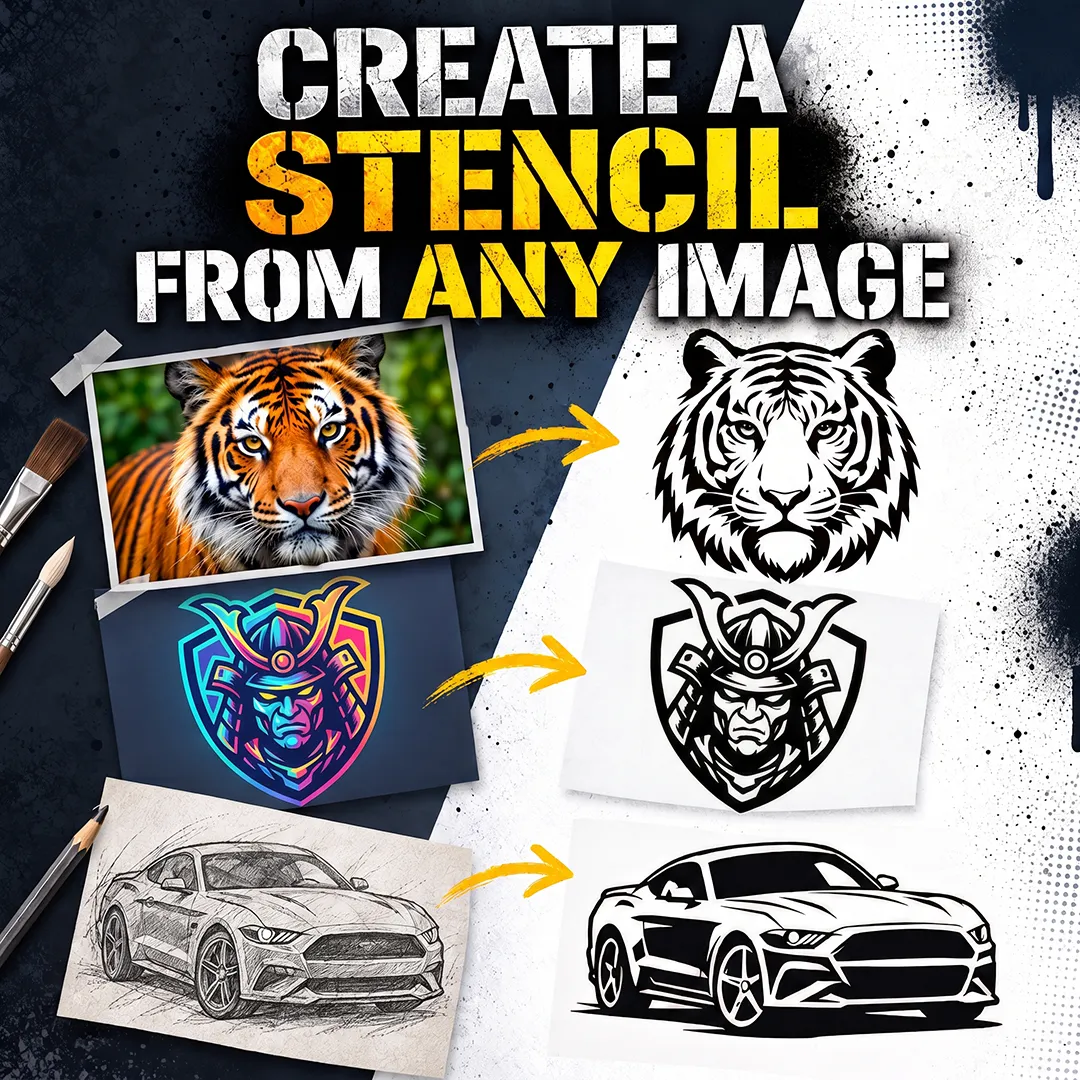
A good stencil has to be physically usable. That means solid black shapes on a plain background, with every part connected by thin bridges so no piece falls out when you cut it. Free AI chatbots like ChatGPT, Gemini or Grok can prepare this for you. Upload your image and use a prompt like this:
The AI will simplify your picture into a high-contrast, black-and-white design that is ready for vectorization.
Vector conversion works best with a sharp, high-resolution bitmap in JPG, PNG, WEBP or AVIF format. A blurry or small image produces rough edges and wobbly curves, and this matters most for fine details and lettering. If your AI-generated image is small or soft, use our free AI image upscaler to enlarge it and sharpen the edges before you convert it.
Upload your stencil artwork to our vectorizer, choose the output format you need and click Start Conversion. When the conversion is done, download your vector file and import it into your cutting or design software (Cricut, Silhouette, LightBurn, or Illustrator).
Get inspired
A custom stencil is a template you can use again and again. Here are some popular ways to use one:
Large silhouettes, quotes and patterns
Painted lettering and logos
Spray or screen-paint your own designs
Fine, repeatable detail
Monograms, frames and drinkware
Stamped or painted artwork
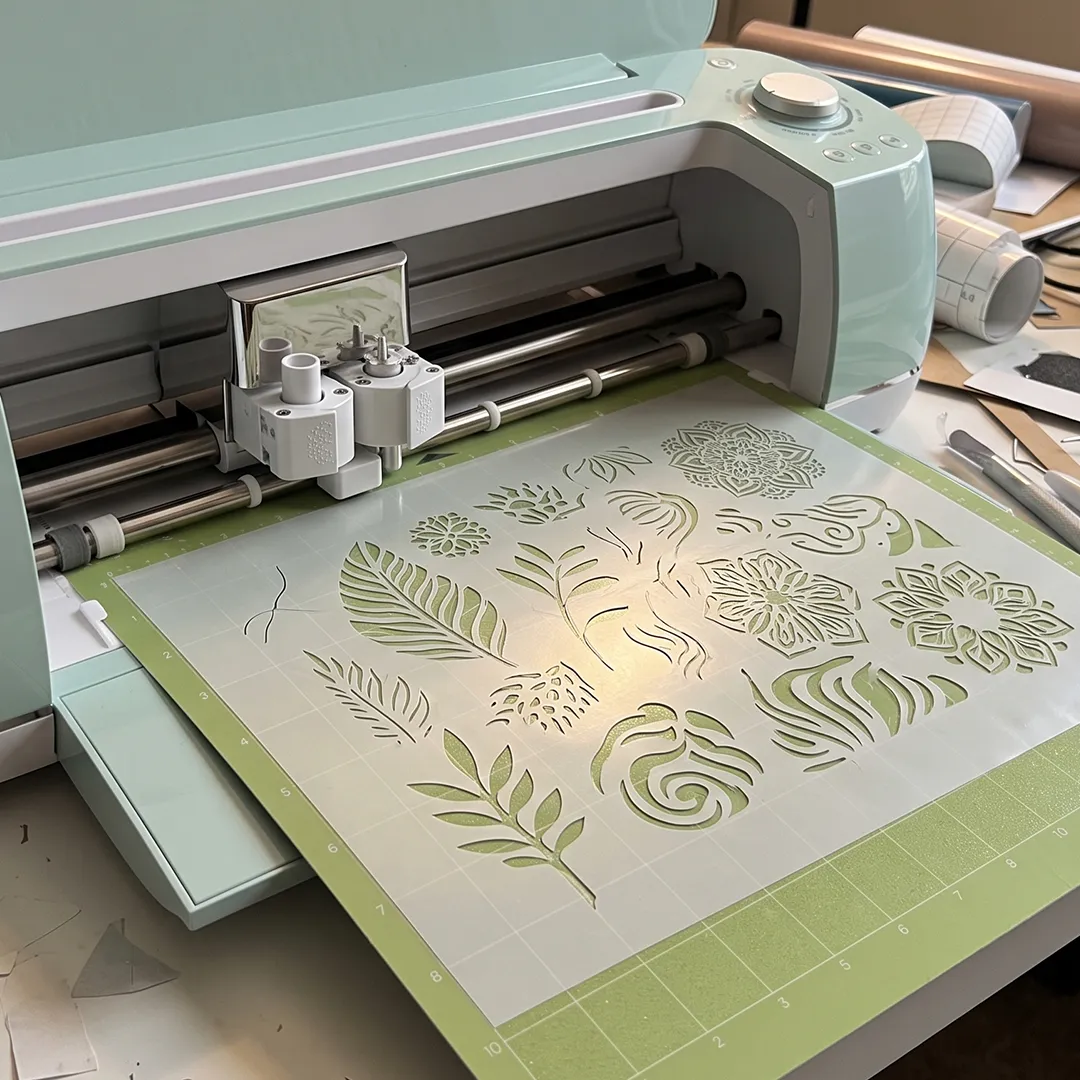
Cricut, Silhouette and plotter-ready files
Thin acrylic, cardstock or Mylar sheets
Design standards
Clean geometry and physical durability are essential when cutting or tracing custom stencil templates.

Stencils work best as bold silhouettes. Tiny details, gradients and textures don’t survive cutting, so the cleaner the design, the better the result.
Letters like O, A and B have islands in the middle that would drop out when cut. Good stencil designs leave small bridges that hold those parts in place.

Our vectorizer merges shapes and keeps the node count low. This gives you smooth curves and edges that cut accurately on a plotter, laser or craft knife.

Each file is single-color, with a transparent background and no stray outlines. It is ready to cut, with no manual cleanup needed.
Why choose us
Many “free” tracers ask you to pay before you can download. Ours doesn’t. You get SVG, PDF, EPS and DXF files at no cost and without an account.
Export in the formats that cutting and design software expects. They work with Cricut Design Space, Silhouette Studio, LightBurn, Glowforge, xTool Studio, Inkscape, Illustrator and CAD tools such as AutoCAD and Fusion 360.
Most conversions take 2–6 seconds. Very detailed or high-resolution images can take a little longer.
We don’t permanently store your uploads. Exported vector files are deleted from our servers automatically after 10 minutes.
Trusted by makers
Vectorization.eu is one of the longest-running online vectorization tools, with more than 10 years of experience and millions of successful conversions. Below are authentic G2 reviews from users who regularly rely on our vector tracer.
The best thing is that it supports SVG format, which is usable in all design software. The Black and White vectorisation works really fast, the colour vectorisation works well too, and I am impressed with how well it converts raster images.
I really like that I can vectorize an image using this amazing online vectorization tool. It is converting my blurry bitmap images into a scalable vector. The most important feature is that these images can scale without losing the quality.
I can convert images (PNG, JPG) into SVG without paying, which is great for quick tasks. You don't need an implementation because it doesn't require software installation; it works directly online.
Authentic reviews on G2.com →
FAQ
A stencil is a reusable template made from a thin, durable material (such as Mylar, vinyl, cardstock, or acrylic) with cut-out shapes, patterns, or lettering. When you apply paint, ink, spray paint, or etching cream over the template, the design transfers cleanly onto the surface below. Stencils are used to reproduce artwork, text, and logos quickly and consistently across walls, fabric, wood, glass, leather, paper, cakes, and DIY craft projects.
Images with strong contrast and simple shapes work best: logos, silhouettes, icons, lettering and bold illustrations. Detailed photos need to be simplified first. The AI prompt in Step 1 does this for you.
Yes. Photos contain gradients and fine texture, which stencils can’t reproduce. Use an AI chatbot to reduce the photo to a high-contrast, two-tone version first, then vectorize it.
Use SVG for most craft cutters, vinyl cutters and design software. Use DXF for CAD and CNC workflows, and PDF or EPS for printing and professional graphics software.
JPG, PNG, WEBP, AVIF, BMP, HEIC and TIFF. For the cleanest result, use a sharp, high-resolution image on a white background. The white background is converted to transparent during vectorization.
Your cutting software may treat black shapes as the material to keep, not the material to remove. Turn on invert colors in the vectorizer to swap the two.
Yes. Our files work with any program that supports SVG, DXF, PDF or EPS, including Cricut Design Space, Silhouette Studio, LightBurn, Inkscape and Illustrator.
No. We don’t permanently store uploads or generated files. Exports are deleted automatically after 10 minutes.
You can use it on walls, wood, fabric, glass, leather, metal, paper, cakes and more. A vector stencil can be resized to any dimension without losing quality, so you can reuse the same file for a small card or a large wall.
Upload an image and get a clean, cut-ready vector stencil in seconds. It’s completely free, with no signup required.
Convert your image now →